Showing posts with label vista. Show all posts

Wednesday, January 14, 2009

Windows 7 doesn't show Vista Drive

You may not be able to see Windows Vista volume via Windows 7 beta. A simple work around will make your lifer easier... just assign drive letter to it

Firstly ... Wish you all a Very Happy New Year 2009.


MS released its next successor of ill reputed Windows Vista in form of Windows 7 beta on 09-January 2008.Since last several months there was lot of talk about project Vienna and leak of this product on pirated sites. Finally Windows 7 saw a light of release and its actual download starts from 10 Jan 2009.

I downloaded the 64 bit version of Windows 7 ( Windows 6.1.7000). A 3.15 GB download took more than 10 hours to download. I burned the DVD from ISO file and booted my existing Vista PC with this DVD.After successful installation , I greeted by Betta fish (Siamese fighting fish) clad desktop and it was my first tryst with Windows 7.

As usual I started exploring Windows 7 and in background of my mind , I was comparing it vis a vis with Vista. Lot of improvements in explorer shell , improved task bar , control panel impressed me. The most noticeable difference I observed was “responsive” factor. Windows 7 appears to be more responsive than Vista.

So while I was comparing Windows 7 with Vista, I thought why not compare the directory structure of both of the OS. So I decided to open Vista's Windows folder.
To my utmost surprise there was no vista drive in Computer. Though all other drives were visible , Vista OS drive was missing.

So I right clicked on Computer , selected Manage option. Here I selected Disk management. Again to my surprise , Vista drive was very much showing as one of the partition.
To investigate further , I right clicked on Vista drive to see its property. Here I notice the volume label unusual. The Volume label was
------------------------------------------------------------------
\\?\Volume{373C080B-E1B1-11DD-9547-806E6F6E6963}\
-----------------------------------------------------------------
I also noticed that there was no drive letter assigned to this volume. So tried to assigned a drive letter. The moment I assigned the drive letter , this volume label changed to Vista drives volume label at its own.

So my problem get solved. Now Vista drive in appearing in Computer too. So bottom line , IF you are not able to see Vista drive via Windows 7 , just assign a drive letter to it through Disk manager.
Keep Exploring Windows 7

Tuesday, May 13, 2008

Installing XP over preinstalled Vista for Dual boot: Vista will not Boot

(If you are planning to install Windows XP on preinstalled Windows Vista , be careful and aware about how to restore Vista Bootmgr.)

You may need to install Windows XP over preinstalled Windows Vista system. But it is not as straightforward as it looks or similar to installation of XP over win 2k or win98 etc.

After installation of XP, the windows Vista no longer starts. In this case, only the Windows XP get booted. So whatsoever operations requires to restore Vista, you have to do it from XP.
Tech Details:
Installation of windows XP over Vista system means you are overwriting the Vista Boot manager Programme known as Bootmgr. Bootmgr remained installed in boot sector in Vista system. Since you are installing windows XP now , so be ready to replace the Vista Bootmgr with XP boot sector. The XP boot sector loads XP Ntldr programme while Vista Bootmgr loads BCD (Boot Configuration database) to load either Vista or XP as per user choice. If user chooses XP the Bootmgr does loading of Ntldr ,and Ntldr parse Boot.ini file to enumerate the XP operating systems.

After installing XP over Vista you may not be able to run Vista at first. The reason is: you donot have Vista Boot manager which take care of Loading of Vista BCD ,as well as XP ‘s Ntldr.Since BCD is not getting loaded hence Vista fails to load.
What if you are able to restore the Vista Bootmgr? Of course it will server the purpose.
How to restore Vista Bootmgr:
Using Vista Boot DVD:


Boot in XP , Type Command at Run prompt( by pressing Windows Key +R)
Insert first Windows Vista DVD/Media.
Type media drive letter, change directory to boot. If your DVD drive is F:, the path should be f:\boot
Now run the following command
F:\boot\Bootsect.exe /NT60 All
It will restore the Vista Bootmgr in boot sector and allows you dual boot.
Use of EasyBCD
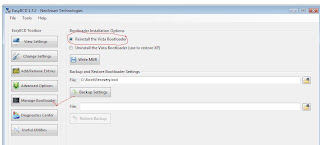
EasyBCD is also a very handy utility to restore vista Bootmgr. Download it in your Windows XP system and Install it. But be careful. Make sure that Microsoft DOT Net framework is installed on XP system; otherwise this tool will give you error from installation itself.
EasyBCD is GUI based tool and you can easily restore the Vista Bootmgr .(See the image)

Happy Installation of XP over Vista

Friday, April 18, 2008

Usage of USB drive to boost Vista with ReadyBoost

Why are you keeping your USB flash drive idle? You can utilize your USB Flash drive / Pen drive to boost performance of windows Vista system.

Recently I tried windows vista ReadyBoost feature and I noticed that it improves system performance noticeably. The system becomes more responsive and appears to be a faster then earlier one.

How to do it?
Very simple. Just plug in the USB flash drive. Windows will detect it and prompt you for various “What to do” options. In this list , at the end you will see a ReadyBoost option. Select it. Assign at least 512 MB disk for ReadyBoost. That’s all. Now your Flash drive is ReadyBoost drive too. You can see ReadyBoost.sfcache, a hidden file on it.

How it works?
It is all about Sequential Vs Random Access game.
Remember, USB drives are slower in reading large data if it is placed Sequentially, but it is very fast when the data need to be read Randomly in small chunks. Windows Vista ReadyBoost feature takes advantage of this fact only
.

Normally, when you open a Applications or large files, windows uses its RAM and hard disk to open a files. For most of the data reading Windows largely rely on Swap file, which is sequential and slower.
Come ReadyBoost drive in picture. Vista’s ReadyBoost mechanism first and foremost caches the frequent tasks like Application opening, data file access, DLL loading etc. It keeps build a database of such activities and location on hard disk. After passing some time, when you try to open the same application or data file, ReadyBoost first recognizes this operation. Then it jump to the location of data and then allows requests of large sequential reading to be fulfilled by the HDD.Here it bypass the role of Hard disk in identification of location of data. That’s all!
You can argue now, “what so special in it? It can be achieved by placing more RAM, which will also do the same trick and that too much faster!!!
Right! But remember every time it is not feasible to place extra RAM in system and here only ReadyBoost shines. It is true especially when you are using laptops, in which addition of RAM is costlier, less feasible.
So if you 2GB or more USB 2.0 Compliant flash drive, and most of the time it is idle, better use it as ReadyBoost drive. Make full use of your investment.
IMP Note: Many people argue that frequent use of USB Flash drive reduces its life as flash drives have a finite number of writes that it can support, but don’t worry. Consider the following facts:
1.USB drives comes with 5-year replacement warranty. If anything goes wrong you can get replacement.
2.You may not continue with the same USB drive in next 3 years, which you are possessing now. Increase in data holding capacity of USB drives day by day and faster hardware may force you to dump your existing USB drive. Hence make full use of it, before it become obsolete..
3. Microsoft claims even with ReadyBoost, USB drive last for 10 years.
The use of USB flash drive, reduces the hard disk spins, hence more greener computing.
So don’t Hesitate: be ready to use ReadyBoost
Links :

On Wikipedia : URI: http://en.wikipedia.org/wiki/ReadyBoost

On PC World: PC World - ReadyBoost Flash Drives Lack Significant Boost
URI: www.pcworld.com/article/id,131742/article.html

Happy Ready Boosting